Thursday, May 15, 2008

Download Free Microsoft Office 2007 Templates

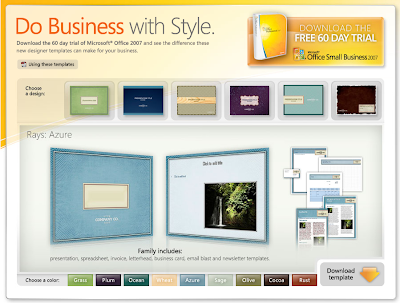
Microsoft released a set of free designer templates for creating professional spreadsheets, documents, letterheads, invoices, email, newsletters and business cards.
Download-Free-Microsoft-Office-2007-Templates-Image

The free download available online has  6 designer templates with option to customize the colour scheme before downloading. The best part is each design has matching template sets for presentations to invoices and emails to newsletters that will look sharp, consistent and powerful.

How to download the templates

1) Go to free templates web site

2) Choose your design by selecting one among the six preview thumbnails shown along the top

3) Customize the colour of the template by choosing one among the 9 colour options available along the bottom

4) Click on Download Template image to download a zip file of template set

How to use the downloaded templates

The instructions for using the templates are documented in a PDF file available at here and here.


Microsoft Free Office 2007 Templates [via Lifehacker]
 

Tuesday, January 22, 2008

View Word, Excel, PowerPoint Documents Without Microsoft Office

You received a Microsoft Office file(word/excel/powerpoint) as a mail attachment  from your friend but there is no Microsoft Office on your computer to open the file.

You have two options to view the attached Microsoft Office file: purchase Microsoft Office Software or just download free Microsoft Office document viewers.

The free Microsoft Office viewer software allows you to view and print Microsoft documents created any version of Microsoft Office between Office 2000 to Office 2007. You can also copy data from Office documents to another programs.

However, you cannot edit an open file, save a file, or create a new file.

Related: Open MS Office 2007 Documents With MS Office 2003 or Earlier Versions

Monday, January 07, 2008

Selecting Text Vertically in MS Word[How To]

Selecting text vertically is often required for documenters when they need to delete the words beginning in a list, especially if they are reformatting text pasted from other sources.

Do you know that Microsoft Word has a nice feature which allows us to select text vertically?

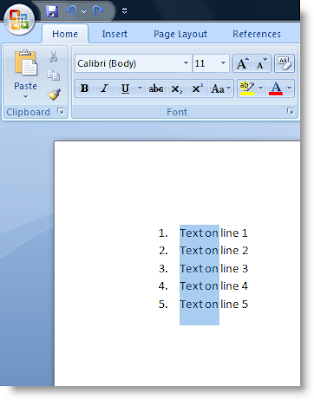
It is very simple. To vertically select, all you have to do is to hold the Alt key while selecting text

Selecting text vertically in MS Word

The above image shows vertical selection of first two words in a list. After selecting you can copy or cut the text. This feature is not only for lists, it works in any part of the document.

Hope this tip will be useful to you. Do you know any other tips? Share with us through comments.

Thursday, January 03, 2008

Where Is the Change Case Feature in Word 2007? [Microsoft Office Tips]

Microsoft Word's Change Case is one of the handiest feature. It's very smart in changing the case of text one format to another. For example you can modify text from lowercase to all capitals with a single click.

So now you are using Word 2007, how do you locate the Change Case feature? For keyboard pros, nothing has changed: Shift + F3 will toggle the select the text from one case to another. But if you are a menu driven user then your need to search all over the ribbon menus or simple read the rest of the article.

Click the Home tab on the Ribbon and then find the Change Case button(shown in the image below) in the Font group.


The ribbon menu of Office 2007 has set new standards of user interface which are very useful. But the users who worked with pervious interfaces have to readjust thinking a little bit.

Saturday, December 22, 2007

Identify and Delete Blank Records in Microsoft Excel Easily

Problem

A huge number of records are available in Microsoft Excel worksheet with many blank records here and there. You want to identify and delete all the blank records automatically. Also you want to  maintain the original order of records available in the worksheet while removing the blank records.

The option of sorting the records and deleting the blanks is ruled out as sorting changes the order of records. We should remove the blank records without disturbing the order of records available in the worksheet.

Solution

Follow these steps to remove the blank records without disturbing the order of data

  1. Select the range of cells from which blank records you want to delete
  2. Press F5 to popup Go To option window
  3. Select Special... option available in the Go To window; displays Go To Special window
  4. Choose Blanks option displayed in the window
  5. Click OK; Excel identifies and highlights all the blank rows in the selected range.
  6. Right click on one of the highlighted cells and select the option Delete; displays Delete popup window.
  7. Choose Entire row option available in the Delete window
  8. Click Ok; Excel deletes all the blank records.