Wednesday, June 18, 2008

How To Install Firefox 3 Without Loosing Firefox 2

The response of users for Firefox 3 call to set up the Guinness record for most number of downloads on a single day is tremendous. An unofficial count of downloads in the first 24 hours is reported as 8.3 Millions.

As I’m writing this post the downloads live counter has just passed 9 Million and with over 3244 downloads per minutes.

The number of downloads would have doubled if all the extension of Firefox 2 worked on Firefox 3. The changes in Firefox 3 architecture broke most of the Firefox 2 extensions and this problem did not encourage few people to upgrade Firefox to new the latest version.

But it is possible to install Firefox 3  without disturbing Firefox 2 installation and the extensions. There is no registry hack or any system configuration required. All you need to do is to install Firefox 3.0 Portable Version from portableapps.com web site. After installation, you would be able to launch Firefox 3 and Firefox 2 without any problems.

Portable version of Firefox 3.0 is a fully featured Firefox 3.0 browser developed for installing on portable devices like USB. Portable applications does not require any installation, which makes them easy to carry on USB drives and launch the applications on any computer where you can plug in the USB.

Happy browsing with Firefox.

Thursday, June 05, 2008

Firefox Just Got Better - RC 2 Available To Download

Firefox, the famous web browser software, has just got better. The second release release candidate (RC2) is now available to download from here.

Unofficially the RC2 was available to download for the past week, but yesterday it is released officially.

Upgrading From Firefox 3.0 RC 1 To RC2

So is it required to upgrade to Firefox 3 RC 2? Even though they are no new features in RC2 when compared with RC1, it is worth upgrading as many bugs identified in RC1 are fixed.

Upgrading From Firefox 2 to Firefox 3 RC 2

You have to think carefully before upgrading to Firefox 3.0 from Firefox 2. Installation of Firefox 3 overrides your previous version without loosing any bookmarks, preferences and other settings. But most of the Firefox 2.0 add-ons are not compatible with Firefox 3.0. Few my favourite add-ons that does not work in Firefox 3.0 are Google Toolbar, Fireuploader and Autocopy.

Download Firefox 3.0 Release Candidate 2

Firefox Tips & Tricks

Sunday, June 01, 2008

Firefox 3.0 To Set Guinness World Record On Highest Downloads

Download Day - EnglishFirefox, the undoubtedly most popular web browser, is all set to get into Guinness Book of World Record  for most number of downloads in a day.
Firefox is going to achieve this record with the help of the user community it is building at Spreadfirefox.

If you are a Firefox fan and willing to support Firefox to set the record, all you need to do is head over to the download day home page and pledge your allegiance. As I'm writing this post 554,637 people already pledged to support Firefox download.

I'm more than happy to be part of the program to waiting to see the first free software to get in to Guinness Book Of World Records.

Thanks LifeSpy

Monday, May 26, 2008

5 Essential Plug-ins for Firefox Web Browser

Unless you are very new to computers, you have undoubtedly heard about the Firefox web browser.

Firefox is a great web browser, and even better, when it comes to plug-ins. There are thousands of plug-ins available to freely download and install. Here are the 5 most useful plug-ins for a common online user

Autocopy places the selected text to clipboard automatically and paste it on middle mouse button click. This extension makes Ctrl + C & Ctrl + V keyboard short cuts unnecessary. It's a very handy plug and huge time saver plug-in for social book marking lovers.

Fireuploader is a single application that can upload and download videos, image and documents from most popular web sites with a common interface. It supports uploading/downloading files to Flickr, Google Picasa Albums, YouTube, Facebook and Box.net.

GMailManager is a very useful plug-in to manage GMail accounts. After installation it sits in the status bar and offer lot of handy features to access GMail easily. Here are the few interesting features

  • allows you to switch between multiple GMail accounts with a single click
  • automatically sings in and opens inbox of selected GMail account with a single click
  • shows the number of unread mails in inbox as well as in other labels
  • lists your most recent 10 messages
  • displays an alert when you receive a new mail
  • allows configuration of sound alerts for new emails

Foxmarks allows you to access browser bookmarks on any computer and keeps bookmarks of your multiple computers in sync. Foxmarks save a copy of your bookmarks in a server so that you can access and manage them from any computer.

IETab - Whether we hate or love Microsoft's Internet Explorer, the fact is we can not live without it. Unfortunately there are so many mainstream web sites that works only in Internet Explorer. IE Tab is here for rescue. After installing IETab, If you encounter a web site that refuses to work properly in Firefox, just click on the small icon placed in the status bar. It automatically swaps the rendering engine from Firefox to Internet Explorer with out leaving Firefox browser.

Quick links to download and install the plug-ins

  1. Download Autocopy
  2. Download Fireuploader
  3. Download IETab
  4. Download GMailManager
  5. Download Foxmarks

Thursday, May 08, 2008

Firefox 2 Refuses to be Default Browser After Uninstalling Firefox 3 Beta - Problem & Solution

Problem

Firefox-browser-set-as-default-browser-problem Recently I installed Firefox 3 Beta application on my Vista Laptop. It was nice playing with Firefox 3 new features but I could not continue using it as most of the Firefox Add-ons  are not yet supported on version 3.0 beta. So I uninstalled Firefox 3 beta application.

After Firefox 3.0 uninstall, to my surprise I noticed that it is not able to set Firefox 2.0 as default browser. Even though I try to set Firefox as the default browser, it is automatically reset to Internet Explorer.

When I try to click web page links on applications like Word, Outlook, GTalk, Skype, etc..IE displays the web page.

I had a terrible browsing experience(sorry IE guys, I love Microsoft but not Internet Explorer) for 2 days as I was not able to set Firefox as default  browser.

Solution

My search on the Internet for tips to solve the problem proven vain. The only option left to me is to override the installation of Firefox 2 by downloading latest version of Firefox 2. I tried the final option and luckily It worked.

I've chosen to override Firefox 2.0 installation instead of uninstall and then install process. It is to make sure that I'm not going to loose any of Firefox bookmarks, add-ons & other settings.

Now I'm back to happy browsing with Firefox. Hope this post is going to be useful to someone who is facing the similar problem.

If you are already a Firefox user you may be interested to check our useful Firefox Tips & Tricks. If you are not using Firefox, then I would say that you are missing a lot.

Monday, May 05, 2008

Firefox Tip: Hold CTRL Key To Open a Link in New Tab Page

Here is a handy tip to enhance your web experience with Firefox web browser.

While browsing a web page in Firefox, if you want to open a link in a new tab page just hold the CTRL(control) key and click on the link. The link opens up as a new tab page.

This is a very handy shortcut to the traditional way of right clicking on a link and then selecting Open Link in New Tab

Monday, April 21, 2008

Configure Firefox to Forget Browser History Immediately After Closing It

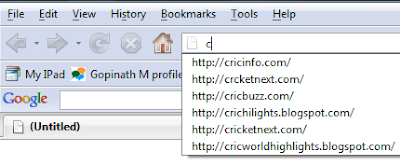
Problem: Your are browsing your favourite web sites at office without the knowledge of your manager. One day your manage want to browse and show a web site related to work on your computer. The moment he starts typing first few characters of the web site, your Firefox browser reveals history of the websites which you visit. How to avoid such embarrassing situations by clearing the browser history automatically after closing the application?

Solution

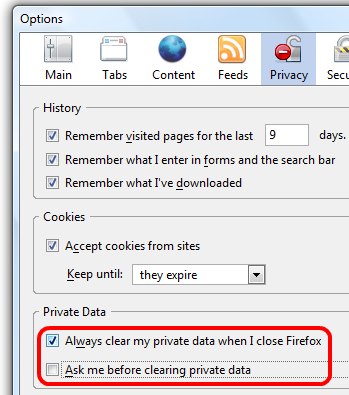
Firefox has an useful option which automatically clears the web browser history as soon as you close the application. To enable this auto clear option

  • Select Tools-->Options--Privacy
  • Choose the option Always clear my private data when I close Firefox
  • Clear the option Ask me before clearing private
  • Click Ok to save the settings


Monday, April 14, 2008

Firefox Browser For Nokia N810 Mobiles

Fennec, the code name of Firefox browser application for Mobiles is available to download from here.

This pre-alpha release of the browser application is only recommended for Nokia N810 mobiles. The Fennec browser is based on the architecture of Firefox 3 beta 4 and it is not yet fully loaded with all the promised features. In  the future it is expected to support add-ons, web applications, AwesomeBar, one-click book marking and inertial scrolling.

[end of post]

Thursday, March 13, 2008

Drag and Drop Your Web Pages into Google Docs using gDocsSidebar add-on for Firefox

Every time you want to open or upload something to Google Docs, you have to first navigate to Google Docs, log in, find what you’re looking for - or navigate to the upload section. Well, not with the handy, free Firefox plugin Google Docs Bar!

The extension has many features from Google's file explorer: you can search for a file, restrict the list to documents, spreadsheets or presentations and view a certain folder

A great feature that makes this extension more valuable is uploading files using drag and drop. Drag one or more files from Windows Explorer to the sidebar and they'll be uploaded in the background.

Sunday, February 24, 2008

Never Leave Your Personal Computer Unlocked That Has Firefox Browser Software Installed

Firefox is the most successful and widely used browser apart from Microsoft's Internet Explorer. It has so many features and extensibility capabilities that made Microsoft to rethink how a web browser should be.

When you enter a username and password in a web page, Firefox browser asks "Do you want Firefox to remember this password?". If you an user who says Remember then you should read this article to understand how unsafe it is.

Firefox prompt that asks users whether to remember passwords or not

When you ask Firefox browser to remember username and password, you at the high risk of exposing your credentials to others.  It is very easy for any one to see all the usernames and passwords by following the menu option Tools -> Options -> Security -> Show Password.The Remember Passwords screen which has simple interface to reveal all passwords

Firefox not only reveals the usernames and passwords but also the web site associated with the login information. So never leave your Personal Computer unlocked that has Firefox browser.

Sunday, January 20, 2008

Firefox Tip - Opening a New Tab Page With Double Click Of a Mouse Pointer

Recently we learned a tip in Firefox to open a new tab page with a single double click of mouse.

All you need to do to open a new tab page is double click on the empty area next to an existing tab page.

Opening a new tab page with a double click

Also it is possible to open a new tab page with keyboard shortcut CTRL + T (Windows)

Wednesday, January 02, 2008

IE Tab- A Firefox Add-On Makes it easier for IE users to switch to Firefox!

If you are an user who have recently switched over to Mozilla firefox from Microsoft’s Internet Explorer and facing problem while opening  IE only pages,then grab this great firefox add-on to solve your problem.

IE Tab

IE Tab an add-on developed by passionate web developers at Mozilla Firefox community allows you to access all web sites without any problem.Even you can run windows updates from Firefox!!

This tool is also very useful for web developers, since it makes easy to check how your page displayed in IE with one click on the button and  switch back to Firefox immediately.

Tuesday, January 01, 2008

Mozilla Launches Firefox Live Chat Support

Mozilla, the developer of Firefox web browser application recently launched live chat feature to quickly resolve problems of Firefox users.

The service which is in beta now is handled by a set of volunteers, not by the employees of Mozilla and it is open only only few hours a day.

When you visit the chat home page, a cute mascot on the right side shows status of the service.Firefox Live Chat mascot

We had chat with one of the volunteers to understand support of addons in the latest beta of Firefox 3.0 and their response is very quick and satisfactory. Here is the transcript of the chat...

Live chat with one of the volunteers

If you have any unresolved question on Firefox application then point your to the live chat home page and get them clarified.

Sunday, December 30, 2007

Remove Duplicate Search Boxes In Firefox Browser

Firefox along with Google Toolbar provides a great web surfing experience. Undoubtedly this combination is one of the best for software for web surfing.

But if you observer the Firefox browser window, you find the Google search boxes duplicated. One search box is available next to the URL bar and another search box in the Google toolbar.

Firefox Duplicate Search Boxes

If you don't like the duplication of search boxes, you can easily remove one among them. As it is more comfortable to use the search box available in the Google tool bar, I suggest you to remove the top right side search. But it's always your choice to remove the one which you don't like.

Removing Search Box Available In Top Right Corner

  1. Right click on the empty area on top of the search box available in the right side; display a popup menu.
  2. Select Customize... option available in the popup menu; displays Customize Toolbar window.
  3. Now drag the search box available on right side top corner and drop it on the Customize Toolbar window
  4. Click on Done to close the Customize Toolbar window

Removing Firefox Duplicate Top Right Side Search Box - 1

Removing Firefox Duplicate Top Right Side Search Box - 2

Removing Search Box Available In Google Toolbar

  1. Click on Settings button available on Google Toolbar
  2. Select Options...; displays Google Toolbar Options window
  3. Click on Layouts icon
  4. Select Replace Firefox search box option
  5. Click on Ok button to save the layout customisation

Removing Google Toolbar Search Box - 1

Removing Google Toolbar Search Box - 2

Thursday, December 20, 2007

Download Official Firefox 3 Beta From Mozilla

Firefox 3, the next generation web browser from Mozilla, has been released as a beta software officially in Mozilla's web site. The Firefox 3 beta includes approximately 900 new features which improves user experience, security, stability & performance.

The English version of the browser for Microsoft Windows can be downloaded from here. If you want to download for other operating systems and with regional language support, visit  Mozilla's download centre.

Read the release notes to know more about the new features introduced in Firefox 3 beta.

[End of post]

Monday, December 10, 2007

Quick Tip to Show PageRank in Firefox while Google Toolbar is Hidden

We all prefer to use the built-in search box to the full Google Toolbar, but we have to miss the PageRank button when we're browsing around without the Google Toolbar enabled. Sure, you can have it installed and hidden, but then you have to reload the page for the pagerank to show up after you unhide the toolbar.

FirefoxTips

I'm going to assume if you've read this far that you also have the Google Toolbar for Firefox installed.

To use this extremely quick tip, just right-click anywhere on the toolbars, choose Customize, and then drag the PageRank button somewhere else:

I moved mine up out of the way, but still easily visible.

FirefoxTip

Only three clicks required for this Quick Tip. Not too bad.

Friday, December 07, 2007

Reveal Passwords in Firefox

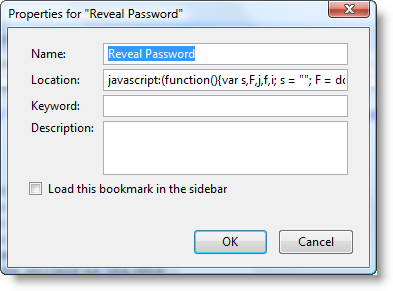
Asterisk Revealer Bookmarklet of Firefox is the one of the best JavaScript which I came across these days. This simple JavaScript reveals content of the password fields whose text is masked with asterisk.

This scriptlet comes very handy when you want to know the passwords for the sites which we save the passwords but forget to remember them.

To use this scriptlet create a new bookmark by right clicking on Firefox bookmarks tool bar and pasting the script available in the post Firefox Asterisk Revealer 

via Easily Show The Contents of Password Fields 

Tuesday, October 30, 2007

Best Gmail Productivity Tips

For the user of Gmail and Firefox, here are the two best tips to get email under control.

Keep most mailing list emails out of your inbox, one of the best way to handle emails is to keep most of the mails out of your inbox.It is common that we usually subscribe to bunch of mailists and end up with a lot of emails,but by adding filters like “If the email is to some-mailinglist, skip the inbox.” we can reduce the inbox load.

After finishing the first tip, its not a surprise that, you still end up with a lot of emails,fortunately the Firefox addon Better Gmail provides the way to prioritize the emails.Here’s how:

  1. Install Firefox and Better Gmail addon.
  2. Go to Tools Menu of the browser and select the option Better Gmail.After that select the “Saved Searches” option in the tab “Sidebar”
  3. Go into Gmail and you’ll see a new sidebar with several example searches.
  4. To run a saved search, just click on the search you want to run in the sidebar. Click on “Edit Searches” and add a new search.

Also, it is very easy to add a new search.Imagine that you get forward mails from your ex-collegues from some abccompany.com with names siva, raju and shyam.This search would find emails from any of those people that are still in your inbox and that are directly sent to you:

How do you add a new search? It’s easy. Imagine that you work at abccompany.com and you work with a team of three people: Alice, Bob, and Carol. This search would find emails from any of those people that are still in your inbox and that are directly to you:

to:me label:inbox AND from:(siva|raju|shyam)@abccompany.com

So let’s click on “Edit Searches” in the sidebar and add this new search. Here’s what you’ll see:

Under the text “Create a new persistent search” fill in the “Label” field with something like “My Ex-Collegues” and in the “Query” field, add a query like the one I mentioned, then click “Save Changes.”

Now when you’re facing a bunch of email in your Gmail inbox, you can click on the “My Ex- Collegues” link and you’ll see the important emails that you don’t want to miss. You can add quite a lot of people, too.

There are all sorts of other tricks you can do with labels and persistent searches. You could make a persistent search for different groups of people at work, or a search for email from your family.

Friday, October 26, 2007

Put Your Gmail on Steroids with Better Gmail Firefox Extension

Better Gmail  a collection of 25 top class addons, is a wonderful   plug-in for firefox. This plugin makes Gmail with Firefox an ultimate experience.

It enhances Gmail in lots of different ways like:

  • Adding Saved Searches
  • Attachment Icons
  • Label Colors
  • Keyboard Macros
  • Filter Assistant   and
  • Right-Click Conversation Previews

The Handy firefox extension which is a combination of best Greasemonkey scripts, removes the pain of spending time on searching the best Greasemonkey scripts to improve your GMail.

Are you not using Firefox browser?

Tuesday, October 23, 2007

How to Enable Auto Filling of Website Address in Firefox Browser Address Bar?

By default Firefox displays a list of website address which matches to the characters entered in Address bar. This gives us an easy way to scroll down and select the required address if it is already there in visited web pages list.

But if we set the value of property browser.urlbar.autoFill to true, Firefox automatically completes the address as we type. In some cases this feature of Firefox browser saves time by automatically filling the address which we are about to type.

Follow these simple steps to enable auto fill property in Firefox browser

  1. Type about:config in the address bar
    • Locate the configuration key browser.urlbar.autoFill (you can use filter to easily locate keys)
      • Right click on the configuration key and select the option Toggle.By default the value is set to false, you should change it true to enable auto filling.
        • That's it done. From now onwards your Firefox browser will automatically fill the address as you type in the address bar

        Other Popular Firefox Posts

        Don't you use Firefox? Please think again if you are not using!

        Firefox is one of the best web explorers available in the market. Just look at the few awards won by Firefox for the past 2 years.

        • PC World 100 Best Products of 2007, 2006 & 2005
        • PC Magazine Choice, October 2006, 2005
        • Forbes Best of the Web, May 2005
        • Webware 100 winner, June 2007
        • CNET Editors' Choice, October 2006

        Get the FREE Firefox browser right now for for faster and secure web browsing.