Tuesday, June 03, 2008

So You Are A GMail User. But Are You A Power User of GMail?

So you are using GMail for regular e-mail communication. But are you a power user of GMail?

Here is a guide for all GMail users to transform as a power user of GMail

Keyboard Shortcuts

If you send/receive mails regularly then learning basic keyboard shortcuts will increase your productivity. Here is a list of common mail operations and the keyboard shortcuts to perform them

  • Compose mail - c
  • Send mail - tab + enter
  • Reply  - r
  • Reply All - a
  • Forward - f
  • Mark a mail as spam - !
  • Select(mark) a message - x
  • Archive a mail - y
  • Read a message - enter
  • Move to next mail/conversation - k
  • Move to previous mail/conversation -  j
  • Return to Inbox/any group of conversations(labels) - u
  • delete a message - #

Composing/Replying a mail in new windows

You can open a new window for composing/replying a mail by holding Shift key when clicking "compose" or "reply". Alternatively you can use the keyboard shortcut Shift + C, Shift + R to open new windows for composing and replying mails respectively.

Make sure to allow pop-ups for GMail.

Muting a conversation

Suppose you are on a mailing list and you don't want to be bothered about a mail conversation.  Select that mail conversation and simply press "m" to mute the conversation so that you will not see the mail in your inbox. The only time this conversation will appear in the mail box is when someone adds you to To or CC list.

Viewing all unread mails

You can view unread mails across all the labels by searching for label:unread. If you want to view the unread mails only from Inbox then  search for label:unread label:inbox.

Sending EXE files as attachments

GMail does not allow you to send a mail if you try to attach files such as .dll, .exe, .vbs, and so forth. This goes for files within ZIP archives as well—GMail looks inside these for executable extensions and the e-mail will bounce back.

The simple work around to trick GMail is to change the extension of executable files  to .jpg or .txt before attaching them.

Selecting a group of consecutive messages

If you would like to select  a group of consecutive messages displayed in Inbox or any other labels, you simple need to check the first one in the list, hold the Shift key and check the last one - GMail automatically selects all the consecutive messages between the first and last one.

Return to Inbox from anywhere

With the help of keyboard shortcut "g i", you can quickly return to inbox from anywhere in GMail application. Also you can return to Drafts( g d), Contact(g c), Sent Mail(g t), Starred(g s) and  All Mail ( g a) using the keyboard shortcuts.

Adding Images to mail

GMail does not allow embedding images between the text of a mail. You can trick GMail to embed images in the mail by just dragging and dropping the image on compose window. Or alternately you can use Ctrl + V to embed an image available in the clipboard.

Establish a secure mail communication

If you are connected to a network that is not trustworthy, then you can use secured version of GMail by pointing your browser to https://gmail.com instead of http://gmail.com. Secured version of GMail uses strong encryption methods to beat the people who sniff network communication.

Wednesday, May 07, 2008

Tricks To Install Yahoo & MSN Messengers On a Computer Not Connected to Internet

Yahoo-MSN-Messenger-Logos The latest versions of Yahoo & Microsoft MSN Messenger are installed with the help of online installer applications.

An online installer application is a small file which is downloaded first; it will then launch, download the required program from servers and begin installation automatically.  This means that the  computer on which you are trying to install Yahoo/MSN Messenger should be connected to Internet.

It is not only Yahoo & Microsoft but also other software giants like Google & Adobe are making the assumption that users are connected to Internet while installing software.

The online installation has many benefits like automatically detecting the parameters of the  computer and downloading the required binaries for installation. But what about the computers that does not have access to Internet? How do we Install Yahoo Messenger and MSN Messenger?

Here are the direct links to bypass online/web installers of Yahoo & MSN Messengers and download the offline installers

Links to Download Yahoo Messenger Offline Installer

Download Windows XP Version

Download Windows Vista Version


Trick to download MSN Messenger Offline Installer

There is no direct link to download MSN Messenger offline installer but we can backup the installer from web installer. Follow these steps to take a back of MSN offline installer

  1. Go to Windows Live Installer
  2. Choose Messenger Application alone from the products list
  3. Click on Install. This downloads a web installer and then it automatically installs MSN Messenger
  4. Wait till the installation is completed
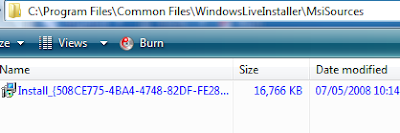
  5. Open the folder C:\Program Files\Common Files\WindowsLiveInstaller\MsiSources
  6. You will find a file with the name Install_{Random Name}.msi and size of the file close to 16 MB
  7. Take backup of this file and rename it as MSN Messenger.msi
  8. Use the backup MSI as stand alone MSN Messenger Installer

MSN-Messenger-Offline-Install-MSI

Thanks Ashish Saini &  Raymond

Tuesday, May 06, 2008

New York Times Articles Pop up Word Definition On Double Click - Excellent Feature Of NYT

New York Times, the famous new paper published in New York and distributed internationally has a nice feature on their web site. Readers of the articles on the NYT web site can double click on a word to lookup for word definition.

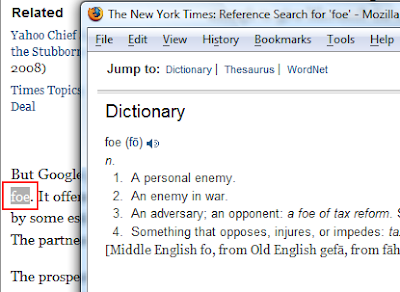
Here is the popup window displayed by NYT with definition when I double clicked the word Foe on one of their articles

To try this option, open the New York Times news article and double click on any of the words; you will see a popup window with definition of the double click word.

This is a very useful feature for people who don't have good command on English vocabulary

Via KillTechTips [ by Aseem Kishore ]

Monday, May 05, 2008

Firefox Tip: Hold CTRL Key To Open a Link in New Tab Page

Here is a handy tip to enhance your web experience with Firefox web browser.

While browsing a web page in Firefox, if you want to open a link in a new tab page just hold the CTRL(control) key and click on the link. The link opens up as a new tab page.

This is a very handy shortcut to the traditional way of right clicking on a link and then selecting Open Link in New Tab

Friday, May 02, 2008

Surprisingly We Need An Application to Uninstall Adode Flash Player!!

Today I had to uninstall Flash player on my laptop for some reason and I was surprised to learn that we need a separate application to uninstall it.

With out knowing that I need an external uninstaller, first I tried uninstalling the Flash components displayed in Add/Remove programs but that did not complete the un-installation.  After Googling  I learned that we need to download an uninstaller application from adobe and execute it to completely remove all the Flash components.
If you ever want to uninstall Flash on you computer follow these steps

  1. download appropriate version of uninstaller suitable for your OS(Windows, Mac OS X and Mac OS 8.x & 9.x)
  2. Close all applications flash dependent applications like Internet Explorer, Firefox browser, etc
  3. Double click the downloaded application

This is the first main stream program which I have ever seen that requires an separate uninstaller application.

Thursday, May 01, 2008

How to Access Blocked Facebook, MySpace, Orkut at Office, School or University

Finding ways to unblock restricted websites is one of my favourite hobbies. In the past I shared few tricks that unblock restricted web sites, Instant Messengers and tricks specific to accessing YouTube and Orkut.

As users learn new tricks to unblock the web sites, network administrators are also tightening all the loop holes in the security systems. Few networking administrators are going to extent of blocking all the web URLs which contains the words like YouTube, Facebook, Orkut, etc. If such strict measures are placed to sensor web at your organisation then you might not be even able to read http://blog.techdreams.org/2007/11/access-blocked-youtube-at-office-school.html as the URL contains the word YouTube.

If you organisation has such strict web sensor policies and none of the our previous tricks work, here a new set of tricks.

Trick 1: Access the web sites using IP address

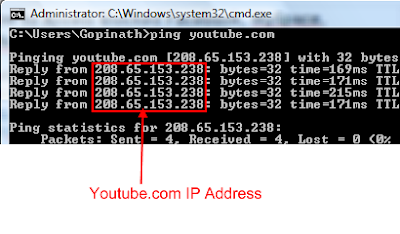
Instead of entering the address of your favourite website in the browser location bar, enter IP address address of the site. For example access YouTube by entering the IP address http://208.65.153.238/ instead of entering http://youtube.com in the URL bar.

To identify IP address of a web site you can use the simple MS Dos command ping or this free online service.

Trick 2:Access the web sites using OperaMini Web Browser Simulator

Use Opera Mini Browser Online Demo application to access favourite web sites in a small screen window. Opera Mini is a popular web browser for mobile phones. It allows users to work with live demo of Opera Mini that functions exactly like it would when installed on a handset.

Point your browser to http://www.operamini.com/demo/ and start accessing blocked websites.


Tip: Access mobile version of the sites while browsing through Opera Mini browser for better experience. Here are the few mobile versions of famous social networking sites

Here are the tricks which I shared earlier

Disclaimer: Use these tips and tricks at you own risk. Your organisations may consider accessing blocked web sites and messengers as breach of security policies and guidelines that may result in any inconvenience.

Monday, April 21, 2008

Configure Firefox to Forget Browser History Immediately After Closing It

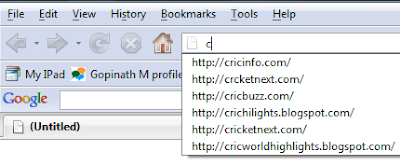
Problem: Your are browsing your favourite web sites at office without the knowledge of your manager. One day your manage want to browse and show a web site related to work on your computer. The moment he starts typing first few characters of the web site, your Firefox browser reveals history of the websites which you visit. How to avoid such embarrassing situations by clearing the browser history automatically after closing the application?

Solution

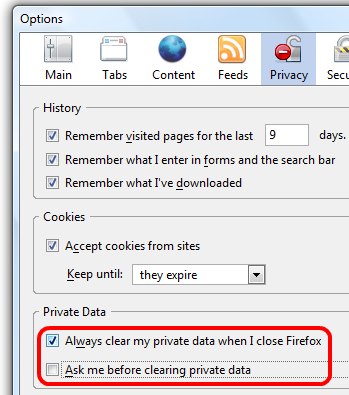
Firefox has an useful option which automatically clears the web browser history as soon as you close the application. To enable this auto clear option

  • Select Tools-->Options--Privacy
  • Choose the option Always clear my private data when I close Firefox
  • Clear the option Ask me before clearing private
  • Click Ok to save the settings


Monday, April 14, 2008

Most Useful & Powerful Features of Google


Google has many special features to help us to find exactly what we are looking for.The popular features are:

  • Simple Math
  • Currency Conversion
  • Current time in any city
  • Unit Conversion
  • Spell checking

The search engine has built-in calculator function, simply enter the calculation you'd like done into the search box and hit the Enter key.

Here's how we can convert currency  - just type the query xxx USD in INR in the search box, press enter and the results are right there in just one click - that's it.

A very simple and quick method to find the current local time in any city or country is via search engines - just type time in City in search box to instantly know the local time of any global location.


The Google's built-in calculator can also solve units of measure and conversions, and physical constants.


It also has powerful spell checker.It's able to suggest common spellings for proper nouns (names and places) that might not appear in a standard spell check program or dictionary.

Thursday, March 27, 2008

Easily Find Out When Was the Computer Turned On

Want to know when was the computer turned on? It is very easy. Open command prompt and execute the simple command systeminfo | find/I "Boot Time" . It displays the date and time at which computer was last booted as shown in the below image.

When SystemInfo command is executed, it gather system information like OS Version, Hot fixes installed, network to which it is connected and other parameters.

If you observe the command which we issued, a Find filter is used to filter the output of SystemInfo command to display only System Boot Time. Try executing SystemInfo command in the command prompt to have a look at valuable information about your system. [via Amit]

Wednesday, March 19, 2008

Access Blocked AIM/Google Talk/Yahoo Messenger/MSN Messenger At Your Office, School, College or University

There are so many easy ways to access most of the blocked websites. In our earlier posts we explained 4 different ways to access any blocked website, tricks for accessing blocked Orkut, Access Blocked YouTube at Office / School / University and Accessing Blocked Web Sites at WiFi Hotspots.

Now let us learn how to access Instants Messengers(IMs) like MSN Messenger/Windows Messenger, Google Talk and Yahoo Messenger when they are blocked at your Office/

The work around to access blocked Instant Messenger is to use Web Messengers. Web Messenger are very easy to use as there is no need to download and install any software/plugins.

Access Blocked AIM/Google Talk/Yahoo Messenger/MSN Messenger At Your Office, School or University - Image

There are many of web messengers available today which allows you to login to most of your favourite messengers at a time. Here is the list of web messengers which allows you to log in to AIM, Google Talk, MSN/Windows Live Messenger and Yahoo Messenger.

  1. Meebo
  2. eBuddy
  3. ILoveIM
  4. KoolIM
  5. SNIMMER
  6. Mabber
  7. MessengerFx

The following are the official web messengers form AOL, Google, Microsoft and Yahoo which allows you to connect to respective messengers

  1. AIM Express
  2. Google Talk
  3. MSN/Windows Live Web Messenger
  4. Yahoo Web Messenger

It is most unlikely that your organisation would have blocked these web messengers too. It is suggested to try at least 3 of the above websites to get access.

Do let us hear through comments if you know any other tricks or popular web messengers that we missed to cover.

Disclaimer: Use these tip and tricks at you own risk. Your organisations may consider accessing blocked web sites and messengers as breach of security policies and guidelines that may result in any inconvenience.

Monday, March 17, 2008

How To Clean Your Personal Computer[Video Guide]

VideoJug has a very good collection of videos which explain and simplify our day to day activities. Recently we posted two videos from VideoJug:  Master How to Knot a Tie in 10 Minutes - Windsor Knot and How to Cut and Disjoint Whole Chicken With No Waste 

Here is another interesting video which is useful to almost all the personal computer users - How to clear a computer with vinegar.

To clean dust and static free your computer first use a vacuum clearer remove dust from keyboard, Cabinet and other peripherals . Then use distilled vinegar to wipe body of the computer. The end result is a tidy and static free computer.

Thanks Amit

Sunday, February 17, 2008

Selecting Multiple Mails With The Help of SHIFT Key [GMail Shortcuts]

GMail has an undocumented feature that allow you to select multiple mail conversation with the help of Shift key. This feature works very similar to multi select option in Windows Explorer.

For example if you want to select all the messages from 5 to 25 available in the Inbox, select the message 5 and 25 while holding the Shift key. GMail automatically selects all the conversations from 5 to 25. This features comes very hand when we want to select and archive/delete a row of messages.

Here are few more GMail shortcuts that works with a combination of Shift plus other keys

  • <Shift> + c allows you to compose a message in a new window
  • <Shift> + r allows you to reply to a message in a new window.
  • <Shift> +a allows you to reply to all message recipients in a new window.
  • <Shift> + f allows you to forward a message in a new window
  • <Shift> + i mark your message as 'read' and skip to the next message.
  • <Shift> + u mark your message as 'unread' so you can go back to it later
  • <Shift> + n update your current conversation when there are new messages

Thanks Phillip

Accessing Blocked Web Sites at WiFi Hotspots

Problem

Your are at Dubai Airport waiting for a flight delayed by 4 hours.  You want to pass time by chatting with your friends using Yahoo Messenger. Unfortunately you don't have Yahoo Messenger installed on your laptop and you want to install it now. Dubai Airport has free WiFi access but downloading of any executables is strictly prohibited.  The moment you try to download a executable, an error message is shown with text "We apologize the site you are attempting to visit has been blocked according to DCA Information Security Policy". You need an alternate ways to download and install Yahoo Messenger.

Solution

Accessing blocked sites at Dubai airport is same as accessing blocked sites at your office or school. Follow these simple steps to download and install Yahoo Messenger(or any other desired executable)

  1. Use Google Search and locate the address of Yahoo Messenger installer
  2. Point your web browser to an anonymous browsing proxies like www.zend2.com or www.kproxy.com
  3. Copy and paste the Yahoo Messenger Installer address in the text box available for entering web page address in the proxy site.
  4. Click on Go/Browse button
  5. That's all. Your favourite installer will start downloading.

This trick works not only at Dubai Airport Wifi hotspot but also at most of other Wifi hotspots.

Note: Accessing unauthorised web sites and content using the above trick may be considered as a violation of policies. Take appropriate care and use at your own risk.

Sunday, January 20, 2008

Firefox Tip - Opening a New Tab Page With Double Click Of a Mouse Pointer

Recently we learned a tip in Firefox to open a new tab page with a single double click of mouse.

All you need to do to open a new tab page is double click on the empty area next to an existing tab page.

Opening a new tab page with a double click

Also it is possible to open a new tab page with keyboard shortcut CTRL + T (Windows)

Wednesday, January 16, 2008

"Copy As Path" - The Hidden Windows Vista Option To Copy Full File Path

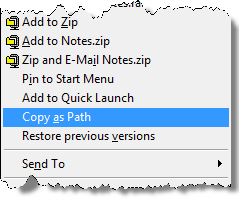
Windows Vista has a nice little hidden feature which allows us to copy full file path to clipboard. If you hold Shift Key and right click on a selected file, a new option appears in the context menu with name "Copy as Path".This option copies the full path of the selected file to clipboard.

This hidden feature comes very handy option when you want to copy and paste network file paths in emails and other documents. Can you guess why is this feature hidden in Vista?

Thanks Luke Foust


Friday, January 11, 2008

Configuring Out Of Office/Vacation Response Message in Outlook, GMail, Yahoo Mail and Windows Live Mail

Whenever we are not available for any reason, it is good create an Out-of-office/vacation response email message. For those who don’t know what an Out-of-Office/vacation response message is, it is an email message that is sent automatically to anyone who sends an email to you.

Most of the popular email clients like Microsoft Outlook, GMail, Yahoo Mail and Windows Live Mail support configuring out-of-office/vacation response messages.

Configuring Microsoft Outlook 2007 to Send Out of Office Response

  1. Select the menu option Tools -->Out of office Assistant; displays “Out-of-office Assistant” configuration window
  2. Choose the option I’m currently Out of the Office
  3. Type the auto response message in the input area “AutoReply only once to each sender with the following text:”
  4. Click on “OK” to save the settings

Configuring GMail to Send Vacation Response

  1. Log in to GMail web application
  2. Click on Settings link (available on the right top corner)
  3. Scroll down the page and identify “Vacation responder:” section.
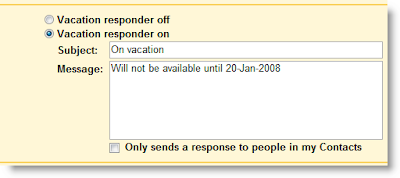
  4. Choose the option “Vacation responder on”
  5. Enter auto reply “email” subject and “message”
  6. If preferred, choose the option “Only sends a response to people in my Contacts” so that this message will be sent only the people whom you know. Is this not a good option to protect us from spammers?

GMail Vacation Response Message Configuration Interface

Configuring Yahoo Mail to Send Vacation Response

  1. Log in to Yahoo Mail web application
  2. Click on “Options” link (available on the right top corner) and select the option “Mail Options”
  3. Click on “Vacation Response” link available in the left side panel
  4. Select  the option “Enable auto-response during your vacation”
  5. Specify the period during which you want to send auto response message by entering “from” and “until” dates
  6. Type auto reply Message
  7. Click on the “Save Changes” Icon available (on top of the display panel)

Yahoo Mail Vacation Response Message Configuration Interface

Configuring Windows Live Mail/Hotmail to Send Vacation Response

  1. Log in to Windows Live Mail web application
  2. Click on “Options” link and choose “More Options…”
  3. Click the link “Send automated vacation replies” available in the section Manage your account.
  4. Choose the option “Send vacation replies to people who e-mail you”
  5. Type auto reply Message
  6. By default Windows Live Mail chooses the option “Only reply to your contacts” to protect you from spammers and warns you not to unselect the option. Not bad Windows Live Mail is a step ahead of GMail! (only in this case)
  7. Click on “Save” button

Windows Live Mail Vacation Response Message Configuration Interface

Thursday, January 10, 2008

How To Hide Windows Folders [Video Tutorial]

Here is a nice video tutorial on hiding Windows Folder with a simple  and easy trick.

This videos explains step by step on how to assign a blank name and blank icon to the folder so that it is almost hidden from most of the  eyes. This is nice trick for hiding low sensitive and low security items .

Hide Folders In Windows- Metacafe Video

YouTube RSS Feeds - Feeds Not Known To Many People

YouTube has very rich video content but not rich RSS feeds support. The few useful feeds which are available through YouTube RSS Feed page are

Apart from these feeds provided by YouTube user interface, It is very difficult to follow favourite channels, subscriptions or videos uploaded by a specific area as there is no user interface which allows to subscribe to the feeds.

That's why I decided to dig through the APIs of YouTube and found few useful feeds that can be tracked using our favourite feed readers.

Subscription Videos Feed

Ravennger, a developer of Yahoo Pipes provided interface through which we can extract feeds of any user's subscription list. For example, the following link allows you to access subscriptions of the user Microsoft.  

http://pipes.yahoo.com/pipes/pipe.run?YouTubeUsername=Microsoft&_id=28303b479f11e24199be4cafced31ad9&_render=rss&itemLimit=20

To access your own subscriptions, replace Microsoft(bold text in the above link) with your user name.

Favourite Videos Feed

Favourite feeds can be access by using the following link. Don't forget to replace WindowsVistaAndLive(bold text) with your own user name.

http://gdata.youtube.com/feeds/api/users/WindowsVistaAndLive/favorites?orderby=updated

Recent Videos Uploaded By A User

Replace WindowsVistaAndLive with your the name of the user whom you want to track

http://gdata.youtube.com/feeds/api/users/WindowsVistaAndLive/uploads?orderby=updated

Hope these feeds will be useful to your

Wednesday, January 09, 2008

Removing A My Analytics Account From Google Analytics[How To]

We all love Google Analytics for providing us very valuable information to analyse my blog visitors.

But I don't like the missing "Remove My Analytics" account option in it. By mistake I created a duplicate Analytics account and wondered to know that there is not direct option to remove an unwanted Analytics account.

After Google few minutes of Googling I came across few posts in forums and blog which helped me to remove the unwanted Analytics account.

There are two options to remove an Analytics account.

  1. send a mail to Google Analytics help centre requesting them to delete it(god knows when they respond to your mail!!)
  2. delete it on our own by creating a dummy Google account

As requesting Google Analytics help centre to remove the account takes long time, I decided to remove the account on my own by creating a dummy Google account.

How to delete an Analytics Account?

  1. Create a new Google Account ( you can use an existing account if Google Analytics is not on it)
  2. Login to your old Google Analytics from which you want to remove the unwanted/duplicated Analytics account
  3. Select the Analytics Account which you want to remove by choosing it from My Analytics Accounts drop down menu
  4. Click on Access Manager; Opens Access Manager interface
  5. Click on Add User link to give administrator rights to the new dummy Google Account created in the step 1
  6. Key in new dummy Google Accounts in Email address input box
  7. Select Access type  as Account Administrator
  8. Click on Finish; Now the new dummy account is granted administrative rights on the Analytics account which you want to get rid
  9. Log out of Google Analytics and login back with your dummy account
  10. Click on Access Manager; Opens Access Manager interface
  11. Click on Delete option displayed next to the old Google Analytics mail id.
  12. That's all. Your old Google Analytics will no longer contain the unwanted Analytics account.

Friday, January 04, 2008

Preview The Destination URL of a TinyURL

TinyURL is the popular free web service used to shorten lengthy URLs like http://www.techdreams.org/2007/12/christmas-logos-of-google-yahoo-apple.html to simple and easy to communicate like this http://tinyurl.com/yuteb8. Tinyurls are popular in blogs like Twitter and other mobile social networks.

As Tinyurls replaces the original website links with short links, at times people slightly feel uncomfortable to click on a link without knowing where it is going to land.

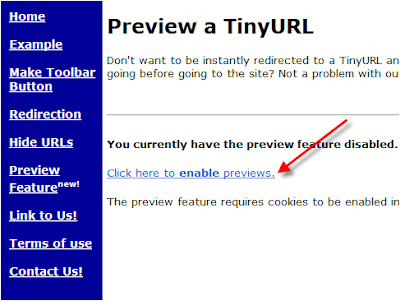
To solve this problem TinyUrl introduced a new feature that will show you a preview of the destination url before going to the site.

Once you are on the site www.tinyurl.com just click the link "Click here to enable previews".

From now onwards if you click on any url like the following, you will be first taken to a preview page which shows the destination URL.

http://tinyurl.com/yuteb8


I found this feature very useful to make sure that I'm not visiting any unknown and malicious websites. Hope this will be useful to you also.