Tuesday, June 17, 2008

Create “Add/Remove Programs” Shortcut To Start Menu & Quick Launch Bar[ Vista Tip ]

I explore many new software’s that are recommended by popular freeware review sites like CNET Downloads, Life hacker & tucows. So I often need to uninstall the programs that I tried and felt like not worth occupying my disk space. To uninstall a software I use to launch “Programs and Features” (Add/Remove Programs) by browsing through Start—> Control Panel ---> Programs  and Features.

But recently I learnt a new trick through which shortcuts of “Programs & Features” are created on start menu as well as quick launch bar. Now I’m able to launch “Programs and Features” in a single click.

Here are the steps to be followed for adding “Programs and Features” to your quick launch bar and start menu

1) Right click on the Desktop and select New –> Shortcut

2) Type control.exe appwiz.cpl in the location of the item input field
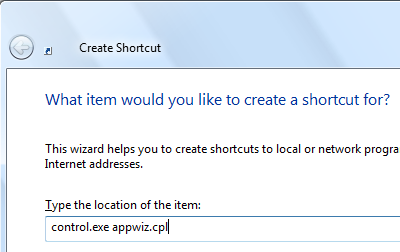
3) Click Next and enter a suitable name for the shortcut (ex Add Remove Programs)

4) Click on Finish. Now you find an icon on the desktop with name Add Remove Programs (or with the name what you entered in step 3)
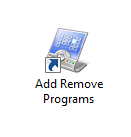
    5) If you wan to create a Quick launch bar shortcut just drag and drop the Add Remove Programs Icon on Quick Launch bar

    6) If you want to create a Start Menu shortcut just right click on the icon and select “Pin To Start Menu”
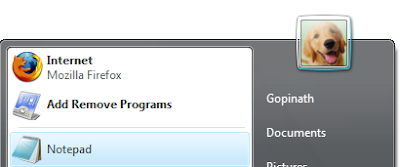
    Now Programs and Features option is just a click away from you.
    Thursday, June 05, 2008

    Installed Vista SP1? Reclaim Your 1 GB Hard Disk Space

    Microsoft delivered latest update to their Windows Vista Operating System through the release of Service Pack 1 couple of weeks ago.

    Installation of Service Pack increases the amount of disk space used by Vista operating system as a backup copy of older files are saved to the disk.

    You can claim almost 1 GB of hard disk space by deleting the backup files. But the catch is, after deleting the backup files you will not be able to uninstall service pack 1.

    I don't think anyone will be willing to uninstall service pack 1 as it improves the performance and security. So you can go ahead and delete the backup files to reclaim 1 GB of hard disk space by following these steps

    1. Open windows command prompt
    2. Execute the command : vsp1cln.exe

    Wednesday, May 21, 2008

    How To Disable Annoying Windows Vista User Access Control(UAC) Dialogs

    The most annoying feature of Windows Vista is User Access Control (UAC) Popups. Even though Microsoft says that UAC is for the benefit of users, most of the Vista users are not comfortable with approving endless UAC dialogs.

    Here is a funny Apple commercial PC vs Mac - Vista Security. I believe most of the people who used Vista accepts what is shown in the commercial - UAC is really annoying!!


    If you are one among the annoyed users who wants to disable User Access Control, here are the simple steps to follow

    1. Go to Start Menu --> Control Panel

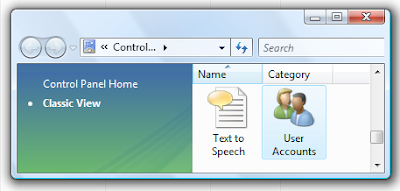
    2. Double click on User Accounts Icon

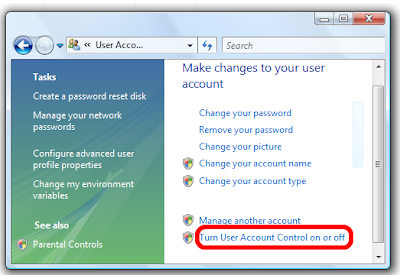
    3. Click on Turn User Access Control on or off. Vista display UAC dialog box; click on Continue.

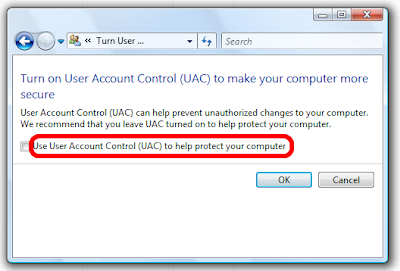
    4. Uncheck/deselect the option Use User Access Control(UAC) to help protect your computer and then click on OK button

    5.Now Vista prompts you to restart the computer for disabling UAC. Restart the computer.

    Sunday, March 30, 2008

    Restore Accidentally Deleted Recycle Bin Icon From Desktop - Windows Vista Tip

    Problem

    When you are deleting unnecessary images, documents and shortcuts placed on the desktop, you deleted Recycle Bin icon by mistake. Now you want to restore the accidentally deleted Recycle Bin icon on to the desktop.

    Solution

    Follow these steps to restore Recycle Bin icon on to Desktop

    1. Right click on empty area of Desktop and choose the option Personalize; display Personalize appearance and sounds window

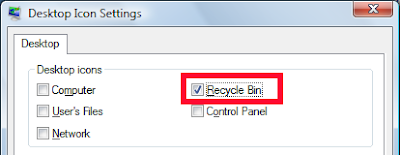
    1. Choose the option Change desktop icons  available under Tasks in the top left side of display window; displays Desktop icon settings window


    1. Select the check box Recycle Bin

    1. Click on Ok to save the settings
    2. Return to your Desktop to see the restored Recycle Bin icon

    Tuesday, February 19, 2008

    How to get updates for your windows as well as other Microsoft products like Office or msn.

    Normally when you start visit windows Update, the panel gives only a list of updates available to your Windows.You then decide which updates you want to download and install.

    If you’ve got other Microsoft products like Office or Windows Defender installed, then you can configure Windows Update to download updates for these applications too.

    Windows update

    On the main window click on “Get updates for more products” showing at the bottom of the window in the above screen shot.This opens Internet Explorer and directs you to Windows Update online. Tick the checkbox “I accept the Terms of Use” and click Install.

    Windows update 

    To switch back to Windows Update default settings always you can use "change settings" option in the main window.

    Wednesday, January 16, 2008

    "Copy As Path" - The Hidden Windows Vista Option To Copy Full File Path

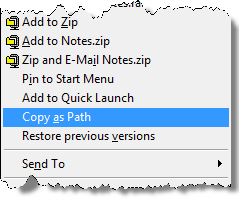
    Windows Vista has a nice little hidden feature which allows us to copy full file path to clipboard. If you hold Shift Key and right click on a selected file, a new option appears in the context menu with name "Copy as Path".This option copies the full path of the selected file to clipboard.

    This hidden feature comes very handy option when you want to copy and paste network file paths in emails and other documents. Can you guess why is this feature hidden in Vista?

    Thanks Luke Foust


    Friday, January 04, 2008

    Manage Multiple E-Mail Accounts Using Windows Live Mail [ Windows Vista Video Tutorial ]

    This video released by Microsoft demonstrates how to manage multiple e-mail accounts using Vista's Windows Live Mail application.

    [end of the post]

    Tuesday, January 01, 2008

    Microsoft Using YouTube to Advertise. Open Comment System Attracting Microsoft Bashers

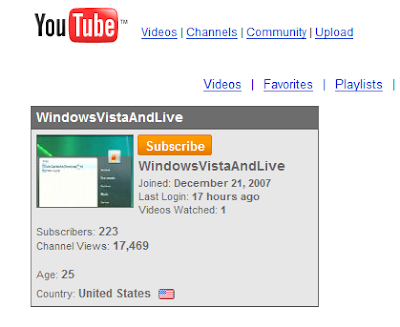
    Microsoft has begun using its rival YouTube platform to advertise Windows Vista and Windows Live products. They started a new YouTube channel WindowsVistaAndLive on December 21 and uploaded a series of short videos showcasing capabilities of Vista, Windows Live products.

    Microsoft's YouTube Channel

    Instead of advertising in a fancy way, these short Video ads explains more on functionality with realistic end-user scenarios and clear benefits of using Microsoft products.

    Courageously Microsoft has also left comments open on each video. Most of you can guess what is the end result : Microsoft Bashers opened the floodgates of Vista horror stories.

    Microsoft Basher's Vista Horror Stories

    Lets hope that Microsoft is going to take comments in the positive way and address the concerns of users.

    Thursday, December 13, 2007

    Internet Explorer Component Activation Issue Fix Available To Download

    Couple of weeks ago Microsoft announced No More 'Click to Activate' Hell With Internet Explorer and now they released a update for fixing this issue as promised.

    After installing this update, you will no more be asked to activate an ActiveX control displayed on Internet Explorer before using it.

    Here are the links from Microsoft Download Centre to get the updates

    Read Knowledge Base article 945007 for full details and links to download updates specific to each operating system.[End of Post]

    Monday, December 10, 2007

    Turbo Charge Your Windows Vista Start Menu Search Feature

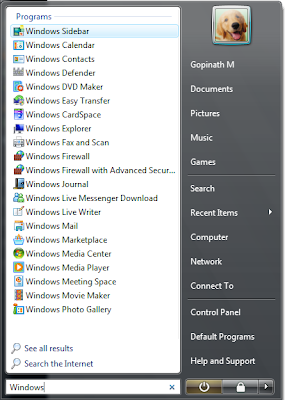
    One of my favourite features in Microsoft Windows Vista is the new Start menu interface. The excellent search feature of Vista Start menu allows users to easily find required programs by just start typing the first few letters.

    That said, concerns about this feature is performance. Certain times when the letters which we typed in the search box does not match with any application or document names, Vista takes long time to tell no items match your search.

    This is because of the default behaviour which additionally searches documents, emails and other network places when program names does not match with the input letters.

    To make this search feature work better and display results very fast, you can have Vista only search your programs.

    1. Right-click the Start Menu and select Properties
    2. Select "Start Menu" and click Customize...
    3. Scroll to the bottom and locate Search related options.
    4. Unselect "Search communications", "Search favorites and history", and under "Search files", select "Don't search for files". Make sure "Search programs" is selected.
    5. Click OK twice to save the settings and exit the properties window.

    Now trying searching in Start menu and feel the difference. You will definitely appreciate more peformant Start Menu search now.

    Thursday, December 06, 2007

    So Shiny Yahoo! Messenger For Vista Released

    Finally Yahoo released a messenger version for vista with a beautiful interface that utilized the new Aero features in Windows Vista.This application came just over a month after the release of new Yahoo Messenger for Windows version 9.0.

    This version of messenger for vista also added the most useful features like tabbed windows, that was totally missed in version 9.0.

    It has also been fully skinned for Vista and integrates into that operating system’s gadget bar. Other features include the ability to change layout of our contact list and automatic filtering of contacts as you enter search terms.

    Wednesday, December 05, 2007

    Good News For Pirated Windows Vista Users

    The current version of Windows Vista, when a pirated copy is detected it activates auto crash functionality by giving only 3 three days time to users to buy an authenticated version. This has proven as very infamous for Windows Vista adoption and people started looking for other alternatives.

    With the service pack 1 release of Vista early next year, Microsoft plans to remove the infamous kill switch from Windows Vista.

    When SP1 is installed, Microsoft will restore the Windows Genuine Advantage(WGA) program to its original role as a series of persistent notifications but non-lethal. A key person of Microsoft WGA team quoted

    Based on customer feedback, we will not reduce user functionality on systems determined to be non-genuine

    Also Microsoft says the new notifications will lead to online get authenticated software page where users can purchase genuine windows OS.

    This drastic change in Microsoft against the pirated software users is to stop loosing the market shares of their products to various competitors like Ubuntu, Firefox etc.

    Related Post

    Microsoft Don't Want Internet Explorer To Die - Removes Windows Genuine Advantage Check

    Friday, November 30, 2007

    Show Microsoft Outlook Tasks & To-Do in Windows Vista Side Bar

    Microsoft released two Windows Vista Side bar imagegadgets which allows you to view Tasks and To-Do list of your Microsoft Outlook  2007.

    These gadgets are very useful as we can always see the list of pending tasks and To-Dos even if Microsoft Outlook is minimized.

    Ryan Gregg, Program Manager of Outlook says

    "The Sidebar presented a great opportunity for Outlook to surface the same information that we show in the To-Do Bar. To this end, we developed two Outlook gadgets: Outlook Appointments and Outlook Tasks. These gadgets can be used independently or together to provide at-a-glance information without the need to bring up Outlook."

    The gadgets can be downloaded from Windows Live Gadget gallery using the following links

    Via Outlook 2007 Gadgets for Windows Sidebar

    Window's Vista Biggest Competitor is Windows XP!

    Benjamin Gray, an analyst at Forrester Research says "Vista's biggest competition is not Apple or Novell or Red Hat; it's Microsoft itself, it's XP".

    Many enterprises are not willing to move to Windows Vista because of Windows XP stability and wide range of third party applications support. This is forcing Microsoft to extend support for Windows XP operating system. The Service Pack 3 of Windows XP scheduled to release by end of March 2008 is expected to boost performance of XP.

    There are many reports by early beta testers about the performance boost in SP3 of XP. The news article Windows XP Speed Boost Coming with SP3 reporting 10% boost in performance while running Office

    Running an Office productivity test suite on a preview version of Service Pack 3 for Windows XP, Devil Mountain discovered a 10 percent performance boost over the current version of Windows XP

    Another report Windows XP outshines Vista in benchmarking test from CNet News says

    Vista, both with and without SP1, performed notably slower than XP with SP3 in the test, taking over 80 seconds to complete the test, compared to the beta SP3-enhanced XP's 35 seconds.

    It is quite interesting to see Microsoft products competing with each other.

    Friday, November 02, 2007

    Apple Mac is the World's Fastest Windows VISTA Computer

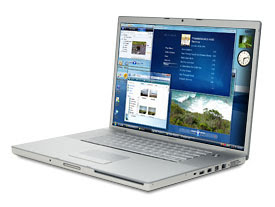
    Worlds faster Windows VIsta based computer is from Apple. Yes what you read is true. Apple Macbook Pro is the world's fastest computer which runs on Microsoft's Windows Vista as per test results announced by PC World.

    In PC World reviews Apple Macbook Pro out performed every other notebook they have tested and the full review details are available here

    Apple Macbook Pro is not only the fastest but also the lightest notebook. The 17" notebook just weights 3 Kilograms(6.6 pounds) and 1 inch thick. And the when it comes to price of this notebook, it is tagged as a higher end at $2419(Rs. 95,269  approx). Thanks David.

    Wednesday, October 03, 2007

    Unable to find out Run command in Vista? Here is a quick fix for this important option.

    By default, windows vista doesn't have the Run command on the start menu.You can restore that to your Windows Vista Start menu with the simple step-by-step instructions. Just right-click your Start menu and click Properties.

    Then with the Start menu tab active, click the Customize button located in the top right, and tick the checkbox next to Run command.

    Your command will now appear in the lower-right corner of the Start menu.Then again, you can always get to the Run prompt with the useful Windows-R keyboard shortcut.

    Tuesday, August 28, 2007

    Stop Microsoft Windows Update Bothering You To Restart

    Microsoft Windows Update application helps us to automatically install latest updates of operating system and other products. Microsoft Update is a nice application as long as it does not bother us with restart dialog.

    When a certain Windows update requires to reboot the operating system, it nags with a dialog box requesting us to restart.

    Luckily one simple command can disable this dialog box

    1. Open command prompt window(Start-->Run...-->cmd-->enter)
    2. Execute the command sc stop wuauserv

    This command stops the service which popup the restart dialog. Now we can restart the operating system when are done with our work. The auto update service will restart next time when we boot and automatically downloads available updates.

    Wednesday, August 01, 2007

    Leaked Patches of Windows Vista Improves Performance and Reliability

    Two collections of Windows Vista Operating System hot fixes leaked to the Internet after being offered to Windows Server 2008 beta testers couple of days ago.

    The patch collections are labeled as "Vista Performance and Reliability Pack" and "Vista Compatibility and Reliability Pack" features a long list of of bug fixes. Two important fixes which caught my attention are reduced resumption time after sleep or hibernation and improved speed of copying or moving large directories.

    These patch collections are expected to be released officially on August 14th through Windows Update channels. The leaked patches can be downloaded from the links Vista 32 Bit Version Pack and Vista 64 Bit Version Pack (I've not downloaded and tested the patches. Download and install them only if you trust the source).

    Updates are:

    • Windows6.0-KB938194-x64.msu @ 3.65mb
    • Windows6.0-KB938194-x86.msu @ 2.13 mb
    • Windows6.0-KB938979-x64.msu @ 14.15mb
    • Windows6.0-KB938979-x86.msu @ 9.86mb

    Vista Performance and Reliability Pack

    • Improves performance in resuming back to the desktop from the Photo and Windows Energy screen saver.
    • Resolves an issue where some secured web pages using advanced security technologies may not get displayed in Internet Explorer on Windows Vista.
    • Resolves an issue where a shared printer may not get installed if the printer is connected to a Windows XP or Windows Server 2003 system and User Access Control is disabled on the Vista client.
    • Resolves an issue where creating AVI files on Vista may get corrupted.
    • Improves the performance in calculating the ‘estimated time remaining’ when copying/moving large files.
    • Improves performance in bringing up Login Screen after resuming from Hibernate.
    • Resolves an issue where synchronization of offline files to a server can get corrupted.
    • Resolves a compatibility issue with RAW images created by Canon EOS 1D/1DS Digital SLR Camera which can lead to data loss. This only affects RAW images created by these two specific camera models.
    • Resolves an issue where a computer can lose its default Gateway address when resuming from sleep mode.
    • Improves the performance when copying or moving entire directories containing large amounts of data or files.
    • Improves the performance of Vista’s Memory Manager in specific customer scenarios and prevents some issues which may lead to memory corruption.

    Vista Compatibility and Reliability Pack

    • Improved reliability and compatibility of Vista when used with newer graphics cards in several specific scenarios and configurations.
    • Improved reliability when working with external displays on a laptop.
    • Increased compatibility with many video drivers.
    • Improved visual appearance of games with high intensity graphics.
    • Improved quality of playback for HD-DVD and Blue-Ray disks on large monitors.
    • Improved reliability for Internet Explorer when some third party toolbars are installed on Vista.
    • Improved Vista reliability in networking configuration scenarios.
    • Improved the reliability of Windows Calendar in Vista.
    • Improved reliability of systems that were upgraded from XP to Vista.
    • Increased compatibility with many printer drivers.
    • Increased reliability and performance of Vista when entering sleep and resuming from sleep.

    Source: nVNews and winmatrix

    Sunday, July 29, 2007

    Capture Screens Using Built in Windows Vista's Application - Snipping Tool

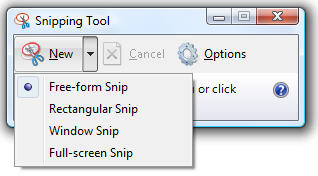
    Microsoft Windows Vista comes with a built in application called Snipping Tool to capture screens. The Snipping Tool allows you to capture a screen shot of any object on your screen and then annotate, save, or share the image through e-mails.

    The application can be launched by selecting Start Menu-->All Programs-->Accessories-->Snipping Tool. User interface of the application is very simple and elegant with handy options to capture different display areas of the screen easily.

    You can use a mouse or tablet pen to capture full screen, window, required rectangular section or even a custom shape. After you capture the image it is automatically copied to an edit window where you can annotate, save or share the image. The edit windows provides Highlighter and Pen options to highlight an area and to write on or around the image.

    This application has a decent functionality which helps small bloggers and technical document writers to capture simple screen shots with out spending money for purchasing third party applications like SnapIt and FastStone Capture.

    Saturday, July 28, 2007

    Windows Vista : Displaying a Custom Interactive Logon Message

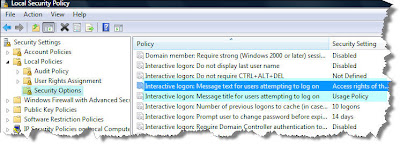
    Displaying a custom interactive logon message on Windows Vista is very simple. The Local Security Policies of Vista operating system has options that allows you to create a message text that will appear when a user attempts to login to the system. You may use this option to display usage policy message in your office or any other shared computers.

    Follow these simple steps to configure a custom interactive logon message

    1. Click on start menu
    2. Then select All Programs -->Administrative Tools --> Local Security Policy( alternatively type Local Security Policy in the search bar available in start menu and select the application)
    3. In the left side panel navigate to Security Settings-->Local Policies-->Security Options.
    4. In the details panel of right side locate & open Interactive logon:Message title for users attempting to logon and enter title of the custom logon message
    5. In the details panel of right side locate & open Interactive logon:Message text for users attempting to logon and enter text of the custom logon message
    6. Now logoff your windows session to view how the custom message is displayed.

    Windows Vista Trick - Configuring a custom logon message