Thursday, May 01, 2008

How to Access Blocked Facebook, MySpace, Orkut at Office, School or University

Finding ways to unblock restricted websites is one of my favourite hobbies. In the past I shared few tricks that unblock restricted web sites, Instant Messengers and tricks specific to accessing YouTube and Orkut.

As users learn new tricks to unblock the web sites, network administrators are also tightening all the loop holes in the security systems. Few networking administrators are going to extent of blocking all the web URLs which contains the words like YouTube, Facebook, Orkut, etc. If such strict measures are placed to sensor web at your organisation then you might not be even able to read http://blog.techdreams.org/2007/11/access-blocked-youtube-at-office-school.html as the URL contains the word YouTube.

If you organisation has such strict web sensor policies and none of the our previous tricks work, here a new set of tricks.

Trick 1: Access the web sites using IP address

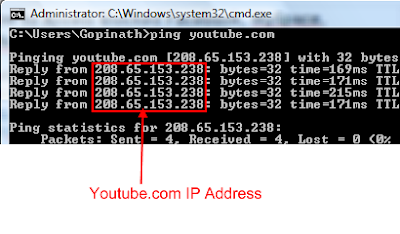
Instead of entering the address of your favourite website in the browser location bar, enter IP address address of the site. For example access YouTube by entering the IP address http://208.65.153.238/ instead of entering http://youtube.com in the URL bar.

To identify IP address of a web site you can use the simple MS Dos command ping or this free online service.
Trick 2:Access the web sites using OperaMini Web Browser Simulator

Use Opera Mini Browser Online Demo application to access favourite web sites in a small screen window. Opera Mini is a popular web browser for mobile phones. It allows users to work with live demo of Opera Mini that functions exactly like it would when installed on a handset.

Point your browser to http://www.operamini.com/demo/ and start accessing blocked websites.


Tip: Access mobile version of the sites while browsing through Opera Mini browser for better experience. Here are the few mobile versions of famous social networking sites

Here are the tricks which I shared earlier

Disclaimer: Use these tips and tricks at you own risk. Your organisations may consider accessing blocked web sites and messengers as breach of security policies and guidelines that may result in any inconvenience.

Sunday, February 17, 2008

Accessing Blocked Web Sites at WiFi Hotspots

Problem

Your are at Dubai Airport waiting for a flight delayed by 4 hours.  You want to pass time by chatting with your friends using Yahoo Messenger. Unfortunately you don't have Yahoo Messenger installed on your laptop and you want to install it now. Dubai Airport has free WiFi access but downloading of any executables is strictly prohibited.  The moment you try to download a executable, an error message is shown with text "We apologize the site you are attempting to visit has been blocked according to DCA Information Security Policy". You need an alternate ways to download and install Yahoo Messenger.

Solution

Accessing blocked sites at Dubai airport is same as accessing blocked sites at your office or school. Follow these simple steps to download and install Yahoo Messenger(or any other desired executable)

  1. Use Google Search and locate the address of Yahoo Messenger installer
  2. Point your web browser to an anonymous browsing proxies like www.zend2.com or www.kproxy.com
  3. Copy and paste the Yahoo Messenger Installer address in the text box available for entering web page address in the proxy site.
  4. Click on Go/Browse button
  5. That's all. Your favourite installer will start downloading.

This trick works not only at Dubai Airport Wifi hotspot but also at most of other Wifi hotspots.

Note: Accessing unauthorised web sites and content using the above trick may be considered as a violation of policies. Take appropriate care and use at your own risk.

Wednesday, October 31, 2007

Freedom to Your iPhone/iPod With a Single Click - Powered By JailBreakMe.Com

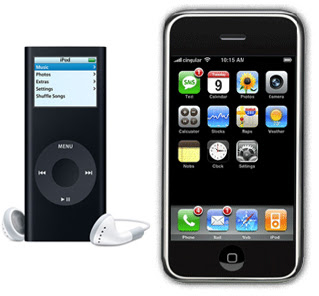
JailBreakMe.Com is a great web site for all iPhone and iPod lovers who want to install third party applications on their iPhones/iPods. With the help of this site, it is a matter of single click to release all the locks and security restrictions implemented by Apple on iPhone/iPods to disallow third party applications.

Point your safari browser to http://jailbreakme.com and click on Install AppSnapp. It automatically downloads and installs a tiny application called Installer by exploiting the security holes in Safari browser.

Jail breaking Apple iPhone and iPod

After installing the application restart your phone once and you will find a new icon Installer on your phone. Now your phone is ready to install all the beautiful applications available on net.

Another interesting news is, Jail breaking not only allows you to install applications on your iPhone but also fixes a bug in Safari browser and makes the phone more secured. [Tuaw]

The One and Only Black iPhone In The World [Pictures]

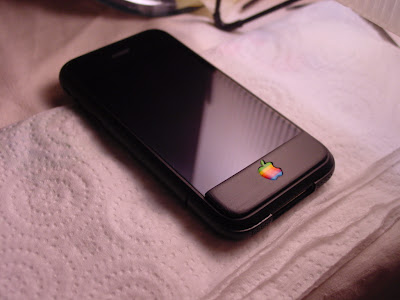
Mark Hoekstra, a Dutch hacker who is well know of Slurpr & iNoPhone fame redesigned an original iPhone from Apple to suit his taste. The end product is a beautiful Black iPhone. This Black iPhone looks much better than the original iPhone.

iPhone Black - Mark Artistic Work

Mark got an iPhone from his friend and activated it to work on Vodophone with a simple hack. Later he reassembled the entire phone by painting it in black and changing the logo. The logo is changed to old multi color Apple logo which is very attractive.

iPhone Black - Mark Artistic Work - 2

iPhone Black - Mark Artistic Work 2

Via Geek Technique Paint it black - The iPhone

Friday, October 26, 2007

Put Your Gmail on Steroids with Better Gmail Firefox Extension

Better Gmail  a collection of 25 top class addons, is a wonderful   plug-in for firefox. This plugin makes Gmail with Firefox an ultimate experience.

It enhances Gmail in lots of different ways like:

  • Adding Saved Searches
  • Attachment Icons
  • Label Colors
  • Keyboard Macros
  • Filter Assistant   and
  • Right-Click Conversation Previews

The Handy firefox extension which is a combination of best Greasemonkey scripts, removes the pain of spending time on searching the best Greasemonkey scripts to improve your GMail.

Are you not using Firefox browser?

Sunday, October 21, 2007

Access Blocked Orkut at Office/School/University

There are different ways to access your favorite sites which are blocked at your office/school/university. In our previous post we explained you 4 easy and simple tricks to access blocked web sites. In this post we explain you the different tricks to access blocked Orkut web site.

Trick 1. Using PowerScrap.com

Using PowerScrap web site to access Orkut is the one of the easiest and most reliable way to unblock Orkut. PowerScrap is a safe, fast, reliable and very powerful site to interact with your friends in Orkut.

Trick 2. Using images.orkut.com

In most of the organizations access to images.orkut.com is not blocked. If your organization has not blocked this site then you are very luck. Accessing orkut through images.orkut.com is same as accessing orkut directly.

Trick 3. Using Facebook web site

If you have Facebook account  then you can use My Orkut application of Facebook to get access to Orkut.

Installing and configuring My Orkut Application on facebook web site is very easy by following these simple steps

  1. Click here to install My Orkut Application
  2. Then copy and paste full url of your orkut account in the preference page of My Orkut Application . URL of your orkut account looks similar to

    http://www.orkut.com/Profile.aspx?uid=1820189889131874780. You can get to the URL by clicking on your own Photo after signing in to Orkut.

  3. That's all. Now you can access your Orkut through Facebook.

(it is very unlikely that facebook in banned in most of organizations in India/Asia)

I hope at least one among the above three tricks works at your organization/school/university. Happy Orkuting!!

Bonus Tip - Download free Norton Anti-Virus from Google

Do you know that the world class Anti-Virus program Norton Internet Security 2007 is free with Google Pack? Google is distributing free Norton Anti-virus software for all the users to ensure safer browsing. Download it right now and keep your computer safe.

Tuesday, August 28, 2007

Stop Microsoft Windows Update Bothering You To Restart

Microsoft Windows Update application helps us to automatically install latest updates of operating system and other products. Microsoft Update is a nice application as long as it does not bother us with restart dialog.

When a certain Windows update requires to reboot the operating system, it nags with a dialog box requesting us to restart.

Luckily one simple command can disable this dialog box

  1. Open command prompt window(Start-->Run...-->cmd-->enter)
  2. Execute the command sc stop wuauserv

This command stops the service which popup the restart dialog. Now we can restart the operating system when are done with our work. The auto update service will restart next time when we boot and automatically downloads available updates.

Monday, August 27, 2007

iPhone Hacked - A 17 Year Teenager Successfully Unlocked And Connected It To T-Mobile Network

George Hotz, a 17 year old teenager from New Jersey has unlocked the iPhone and connected it to T-Mobile network. George Hotz is the first person who successfully hacked Apple's iPhone and connected it to non-AT & T network without any special equipment.

George spent around 500 hours on the project and posted his experiences and unlocking process in Finding JTAG on the iPhone blog. His 10 steps to unlock the iPhone are very complicated and also requires skills with both soldering and software. Any missteps in the process of unlocking may result in the iPhone becoming useless.

George Interview on CNN (Source:Youtube)

The amount of time and hard work spent on this project has paid him lot. George became popular across the world as almost all the major news channels aired his interview and also he traded the unlocked mobile for a trendy sports car Nissan 350Z (worth of $38,070) and 3 8GB iPhones.

Tuesday, August 07, 2007

Recover Lost Instant Messenger Passwords - GTalk, MSN,Yahoo! or Windows Live.

MessenPass is a password recovery utility that allows you to recover password(s) of all the popular instant messengers: MSN,GTalk, AOL,Yahoo!Messenger,Windows Live Messenger.

List of usernames and passwords recoverd by the application

The moment you run MessenPass, it automatically decrypts the available passwords, and displays all user name/password pairs that it found in the main window of the application.It will work even without running the messenger at that time.

Only condition is you have chosen the remember your password option in one of the above programs. And also you cannot use this utility for grabbing the passwords of other users, it works only for current logged-on user on your local computer.

This application also supports saving the usernames/passwords to a file instead of displaying on screen. If you want to save to a file directly then use the following switch while launching

/stext <Filename> 

»Download MessenPass

Saturday, July 28, 2007

Windows Vista : Displaying a Custom Interactive Logon Message

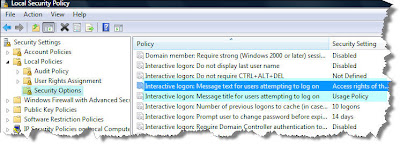
Displaying a custom interactive logon message on Windows Vista is very simple. The Local Security Policies of Vista operating system has options that allows you to create a message text that will appear when a user attempts to login to the system. You may use this option to display usage policy message in your office or any other shared computers.

Follow these simple steps to configure a custom interactive logon message

  1. Click on start menu
  2. Then select All Programs -->Administrative Tools --> Local Security Policy( alternatively type Local Security Policy in the search bar available in start menu and select the application)
  3. In the left side panel navigate to Security Settings-->Local Policies-->Security Options.
  4. In the details panel of right side locate & open Interactive logon:Message title for users attempting to logon and enter title of the custom logon message
  5. In the details panel of right side locate & open Interactive logon:Message text for users attempting to logon and enter text of the custom logon message
  6. Now logoff your windows session to view how the custom message is displayed.

Windows Vista Trick - Configuring a custom logon message

Monday, July 16, 2007

Login to Multiple Google Talk Accounts Simultaneously

You can login to multiple Google Talk accounts simultaneously with a very easy hack. Follow these steps 

  1. Create a shortcut of Google Talk messenger on your desktop or any other preferred location .(To create a shortcut, right click on your Google Talk messenger application and select Send To-->Desktop(create shortcut) )
  2. Right click on the Google Talk messenger icon and select Properties option
  3. Modify target location text "c:\program files\google\google talk\googletalk.exe" /startmenu to

"c:\program files\google\google talk\googletalk.exe" /nomutex

  1. Click Ok

Now you can launch multiple Google Talk messengers with this shortcut and enjoy chatting simultaneously with different accounts